1Create account 2Pick a plan 3Add a profile 4Connect account 5Want list 6Track purchases 7Beta & referrals 8Get help

Member guide

Everything you need to get set up and start getting checkouts.

One page, start to finish — from creating your account to watching an order land in your purchase history. Jump to any step above, or just read straight through.

1

Create your account

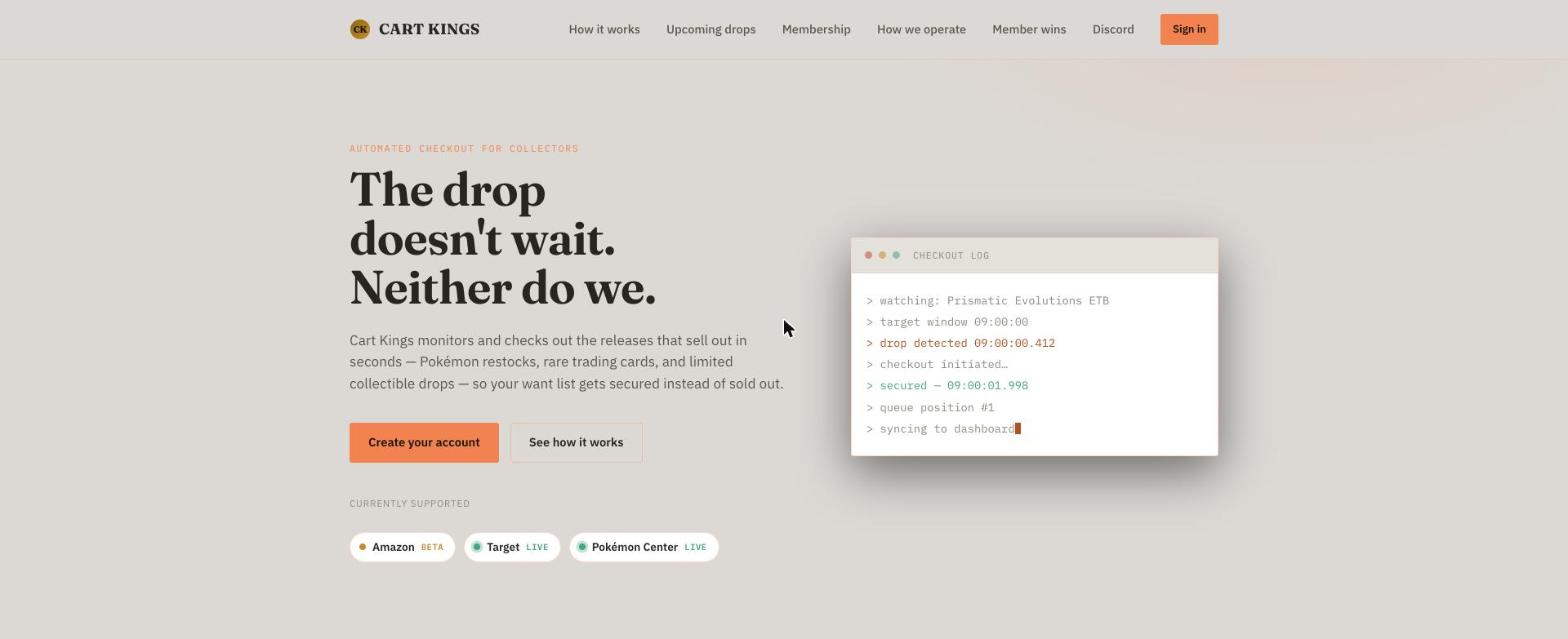
Head to the homepage and click Create your account. Sign up with your email and a password, or use Continue with Discord or Continue with Google if that's quicker. You'll land straight on your dashboard.

The Cart Kings homepage with the Create your account button

The homepage — "Create your account" is top-left of the hero.

2

Pick your membership plan

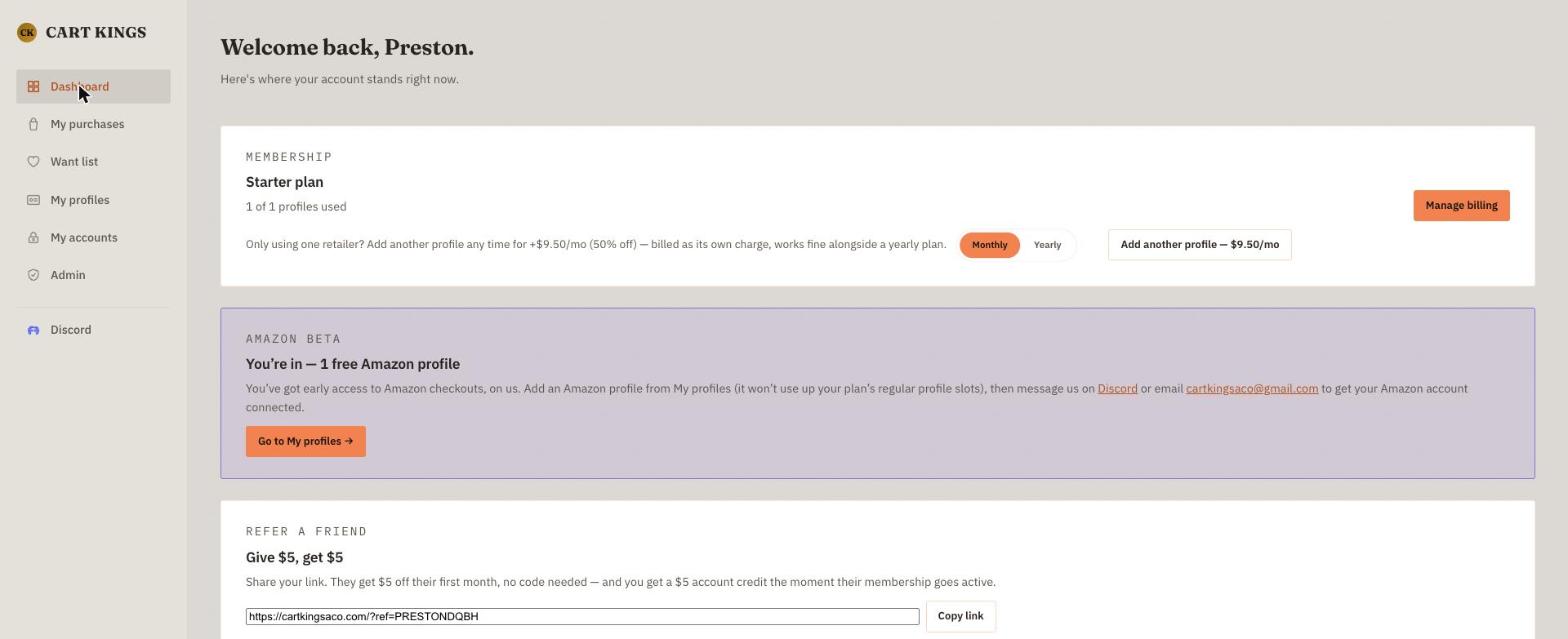
Your dashboard will ask you to pick a plan — monthly or yearly. Every plan includes an unlimited want list.

PlanPrice/moProfiles included
Starter$191
Standard$394
Pro$9912 · priority queue + SMS alerts
Elite$25236 · top-of-queue + dedicated contact

Need one more profile than your plan includes? Add one any time for about $9.50–$12/mo, billed separately — no need to upgrade your whole plan.

Dashboard showing the Membership card, Amazon Beta card, and Refer a friend card

Your dashboard — plan, Amazon Beta, and referrals all live at the top.

3

Add a shipping profile — one per retailer

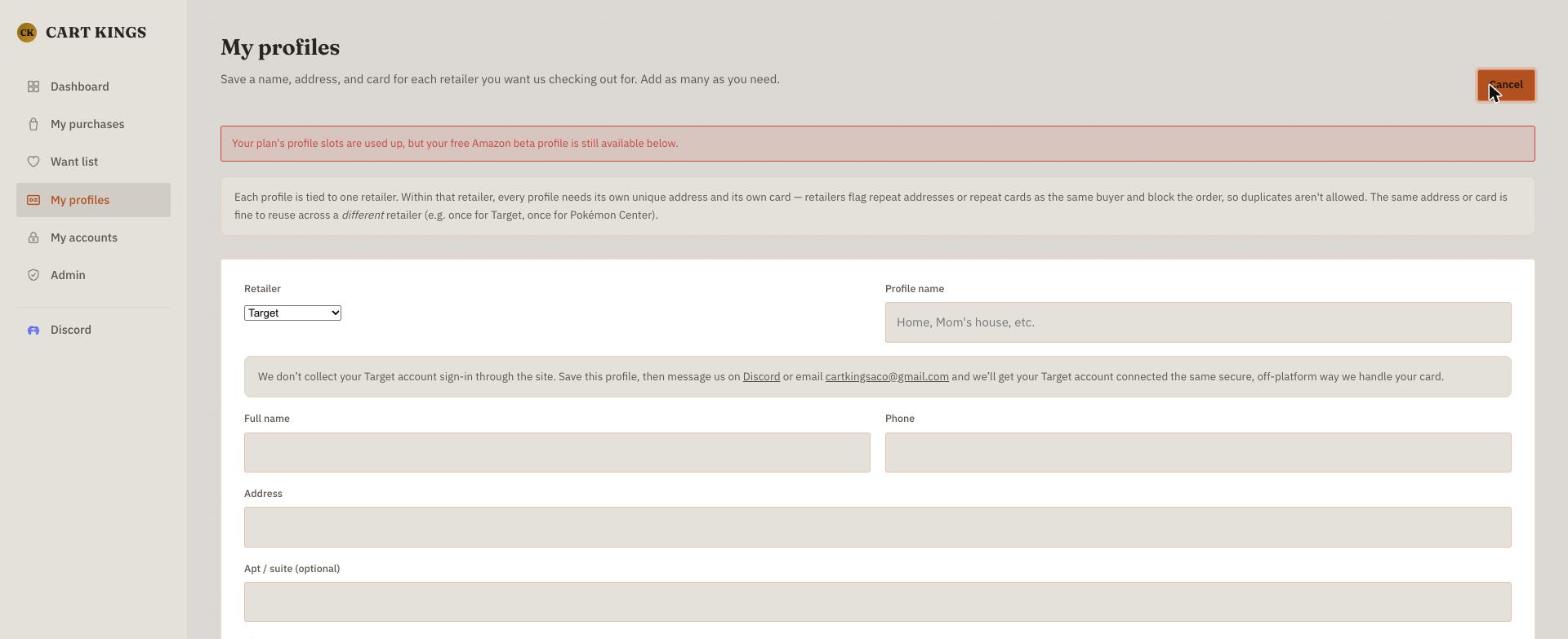
Go to My profiles → + Add profile. Pick the retailer, name the profile, and fill in who and where orders should ship to.

Important: every profile needs its own address and its own card at that retailer — reusing either gets flagged as the same buyer and blocked. The same address/card is fine to reuse across a different retailer.
The Add profile form with retailer, profile name, full name, phone, and address fields

My profiles → Add profile.

4

Connect your retailer account & card

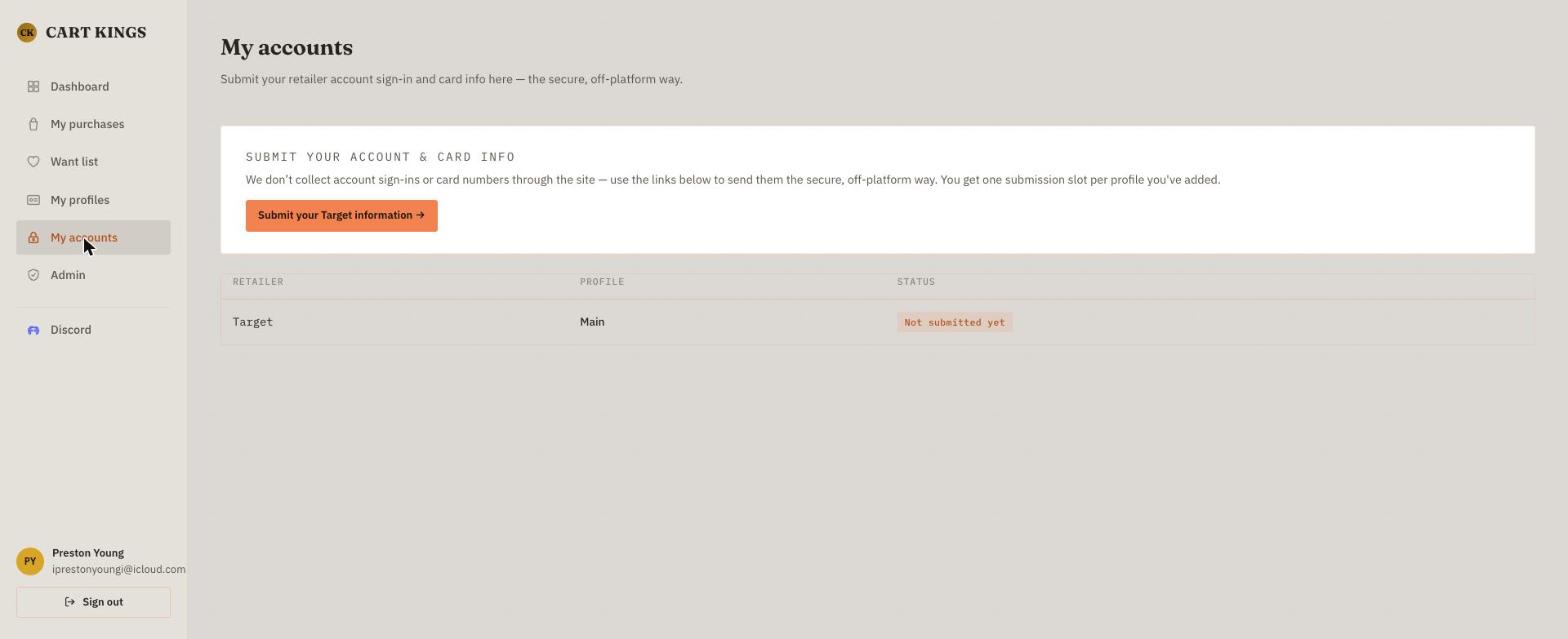
We never collect your retailer sign-in or card number through the website. Once you've added a profile, go to My accounts — you'll see a secure submission link for each retailer you've added. Use it to send your sign-in and the card you want us checking out with.

This is handled off-platform on purpose, the same way any legit service protects your info.

If we ask for an "app password" instead of your real one: some emails (Gmail, iCloud, Outlook/Hotmail) send a one-time code when a new device signs in. If your retailer account needs that code, we'll ask for an app password instead — a separate, revokable code tied only to that purpose. It is not your real email password, and you can turn it off any time without changing your real password.
Gmail — get an app password
  1. Go to myaccount.google.com/apppasswords (2-Step Verification must be on first).
  2. Sign in if asked.
  3. Name it "Cart Kings" and click Create.
  4. Copy the 16-character password and send it to us — Google won't show it again.
iCloud — get an app-specific password
  1. Go to appleid.apple.com and sign in.
  2. Under Sign-In and Security, click App-Specific Passwords.
  3. Click Generate an App-Specific Password, name it, then Create.
  4. Copy the password shown and send it to us.
Outlook / Hotmail — get an app password
  1. Go to account.microsoft.com/security and sign in.
  2. Turn on Two-step verification if it isn't already on.
  3. Under Advanced security options, find App passwords → Create a new app password.
  4. Copy the password shown and send it to us.

Send any app password to us on Discord (DM) or email cartkingsaco@gmail.com — never post it in a public channel.
My accounts page with a secure submission link per retailer

My accounts — one secure link per profile.

5

Build your want list

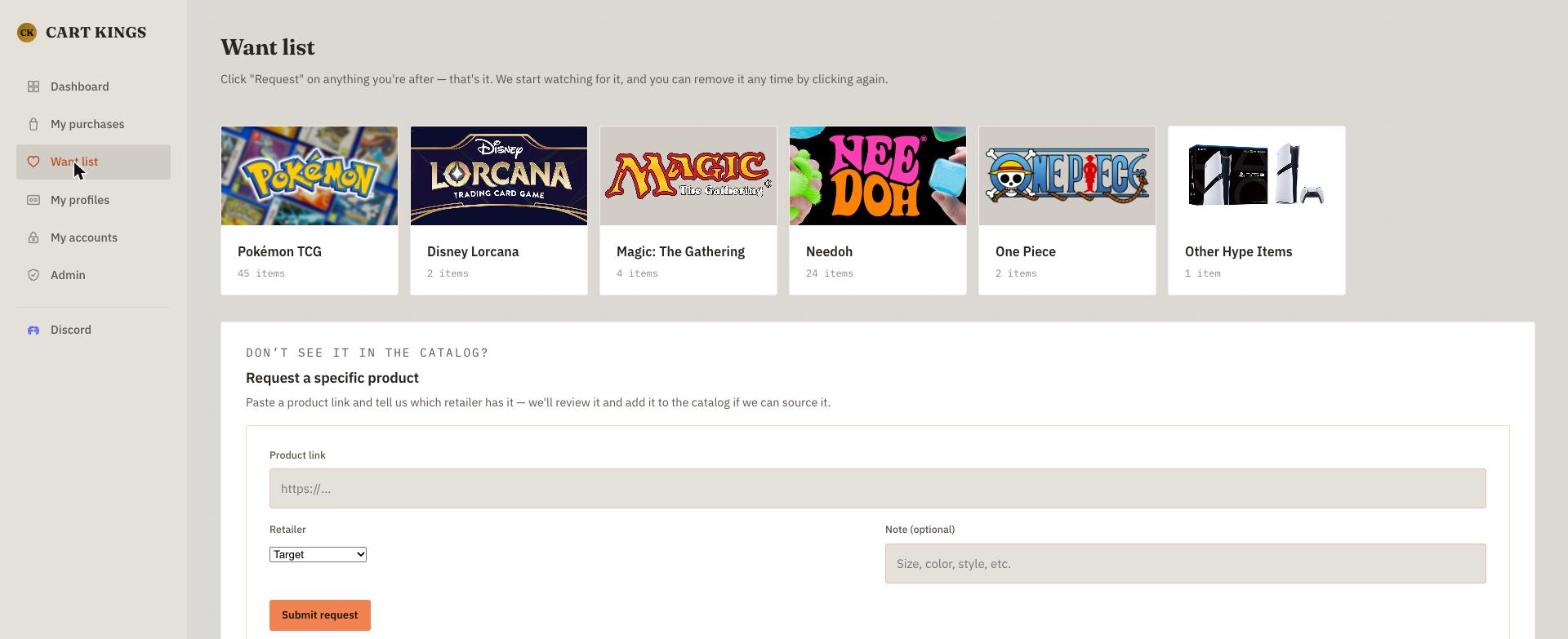
Go to Want list. Browse everything we're currently tracking — Pokémon TCG, One Piece, Magic, hype items, and more, across Target, Pokémon Center, and Amazon — and hit Request on anything you want. That's the only thing you need to do to get in line for a drop.

The moment something on your list goes live, we watch the release window and check out on your behalf. Nothing more to do on your end.

Want list page with category cards for Pokemon TCG, Disney Lorcana, Magic, Needoh, One Piece, and Other Hype Items

Want list — tap a category, then Request what you're after.

6

Track what you've secured

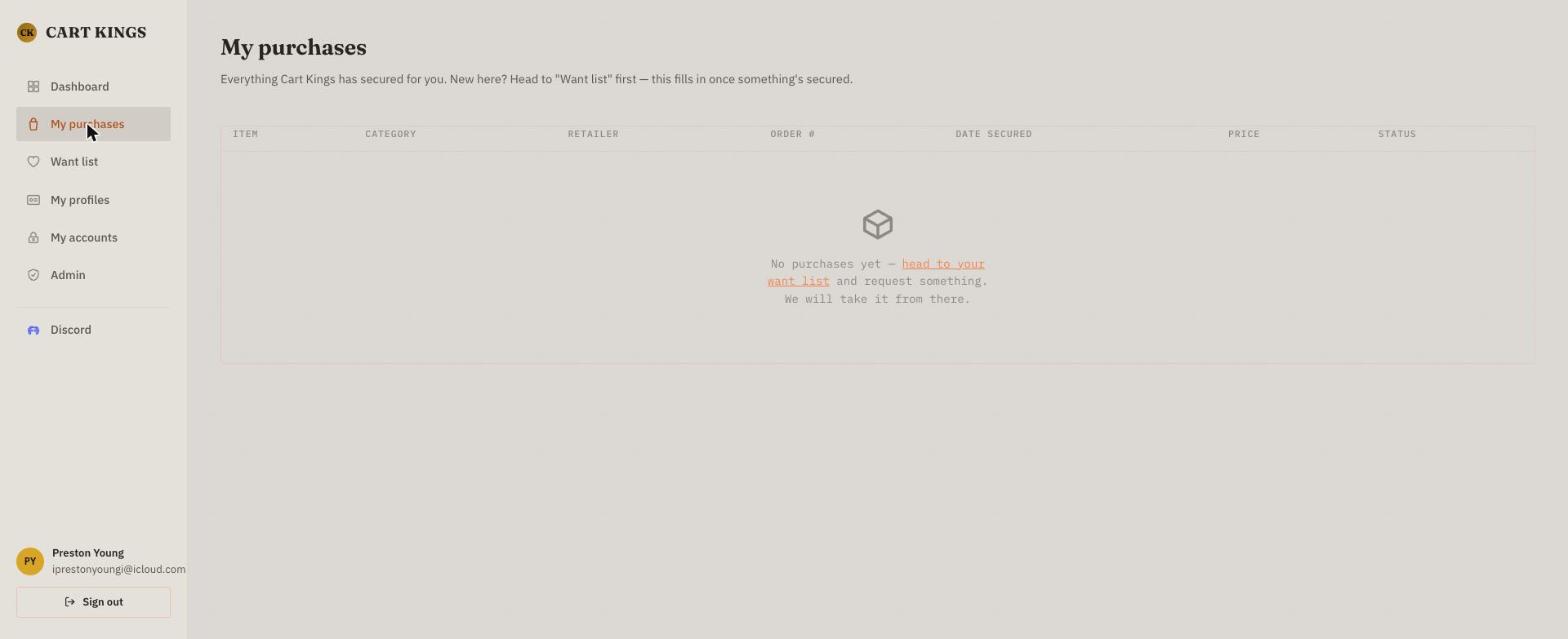
Your dashboard shows active watches, items secured, and total spent at a glance. My purchases lists every item we've secured — item, retailer, order #, date, price, and status.

You'll also get a DM the moment something's secured, and it shows up automatically — no manual entry needed.

My purchases page, empty state prompting to head to the want list

My purchases — fills in automatically once something's secured.

7

Amazon Beta & referring a friend

Amazon Beta — every member gets early access to Amazon checkouts for free, and it doesn't use up a plan profile slot. Add an Amazon profile from My profiles, then message us on Discord or email cartkingsaco@gmail.com to get it connected.

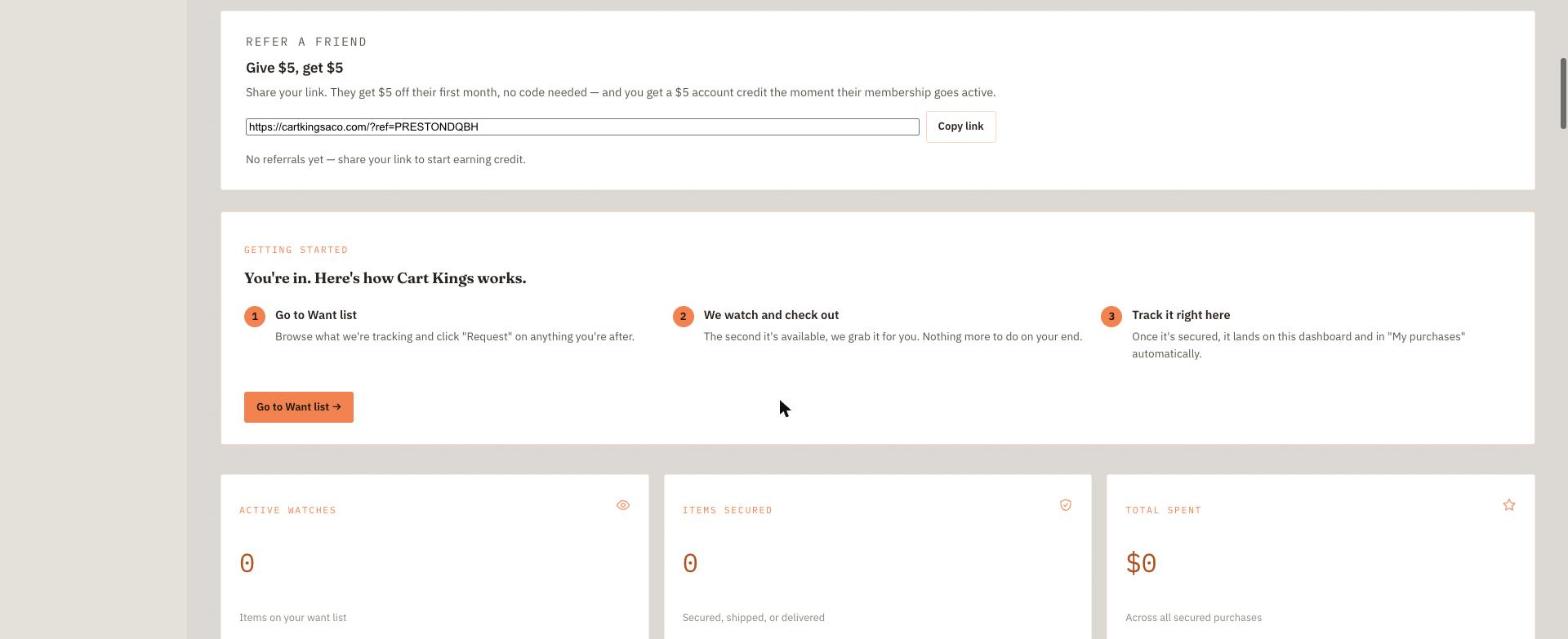
Refer a friend — copy your link from the dashboard and send it over. They get $5 off their first month, no code needed, and you get a $5 account credit the moment their membership goes active.

Refer a friend card and the Getting Started three-step card on the dashboard

Refer a friend, plus the Getting Started recap — both live on your dashboard.

The only 3 steps that matter after setup

Request it. We get it. It shows up.

1
Want list

Request anything you're after.

2
We check out

The second it drops.

3
My purchases

It's tracked automatically.

Still stuck, or something looks off?

Discord is the fastest way to reach us. Elite members get a dedicated concierge contact instead of the general queue.

Join our Discord Email us